CPU-Z Features: Comprehensive System Information Tool

CPU Information

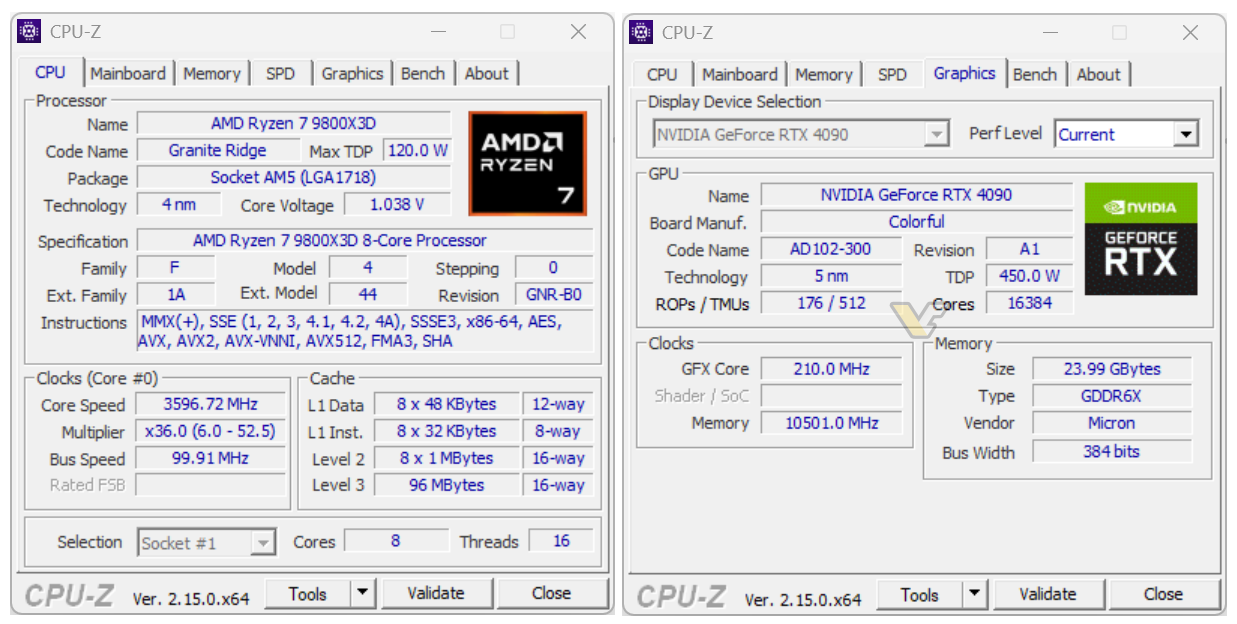
Display detailed processor information: name, number, codename, process, package, and cache levels. Real-time measurement of each core's internal frequency.

Memory Information

Display memory type, size, timings, and module specifications (SPD). Real-time measurement of memory frequency.

Mainboard Information

Display detailed mainboard and chipset information. BIOS vendor and version, motherboard vendor and revision.

Performance Monitoring

Real-time measurement of processor and memory frequency. Display cache information and latency for each level.

Report Export

Export information as text or HTML files. Save screenshots. Create validation files.

Multi-Platform

Available for Windows and Android systems. Support for 32-bit and 64-bit. Easy-to-use interface.

Download CPU-Z: Free System Information Software

Current Version: CPU-Z 2.17

The latest version of CPU-Z supports the newest Intel and AMD processors including:

  • Intel Core Ultra X9 388H, Core Ultra X7 368H (Panther Lake-H)
  • Intel Core Ultra 9 375H, Core Ultra 7 355H (Panther Lake-H)
  • AMD Ryzen 9 PRO 9945, Ryzen 7 PRO 9745 (Granite Ridge)
  • AMD Ryzen 5 5600F (Vermeer)

System Requirements

Operating System:

Windows XP / Vista / 7 / 8 / 10 / 11

Processor:

x86 or x64

Memory:

512 MB minimum

Storage:

10 MB free space

CPU-Z User Guide: Complete Installation and Usage Instructions

Installation & Setup

CPU-Z is available in two versions:

  • Setup Version: Contains an installer that automatically selects the appropriate version (32-bit or 64-bit) and creates shortcuts in the Start menu and desktop.
  • ZIP Version: Portable version that doesn't require installation, can be run directly from any folder.

Program Interface

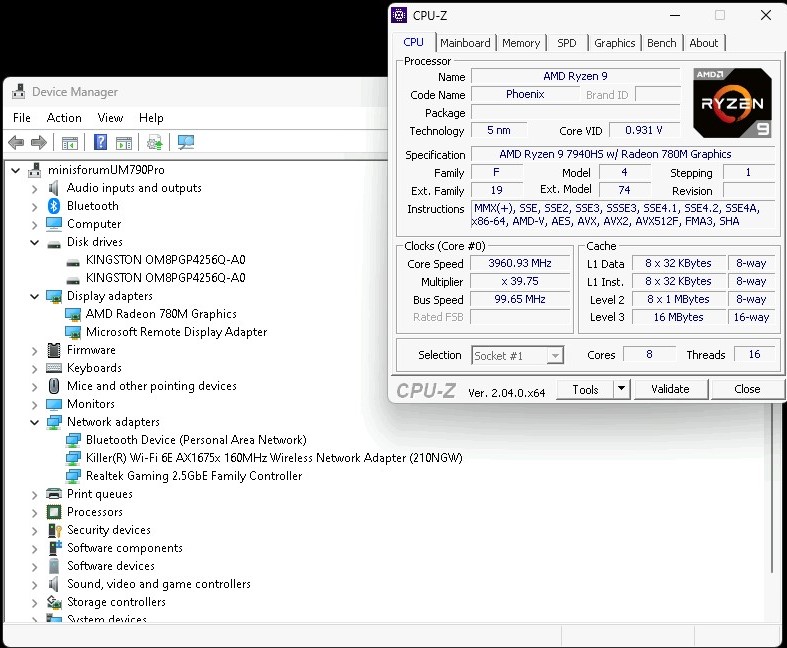
CPU-Z interface displaying AMD Ryzen 9 7940HS processor information and system details

CPU-Z interface is divided into main tabs:

  • CPU: Basic and detailed processor information
  • Caches: Cache information at all levels
  • Mainboard: Mainboard and chipset information
  • Memory: Memory information and timings
  • SPD: Individual memory module information
  • Graphics: Graphics card information
  • Bench: Performance benchmarks

Keyboard Shortcuts

F5

Save screenshot as BMP file

F6

Copy current page to clipboard

F7

Save validation file

F9

Switch between CPU clock computation methods

Configuration File (cpuz.ini)

You can customize CPU-Z settings through the cpuz.ini file:

[CPU-Z]
TextFontName=Verdana
TextFontSize=13
TextFontColor=000060
Sensor=1
DMI=1
PCI=1
SPD=1

Place the cpuz.ini file in the same directory as cpuz.exe to apply settings.

Command Line Parameters

cpuz.exe -txt=report

Run CPU-Z in ghost mode and automatically create a text report

cpuz.exe -html=report

Create an HTML report instead of text

cpuz.exe -core=0

Display frequency of a specific core (0 to number of cores - 1)

CPU-Z User Reviews & Real-World Experiences

John Smith

Power User

"I've been using CPU-Z for over 5 years and it's the best program for displaying system specifications. It has helped me a lot in verifying processor specifications before purchase and in solving compatibility issues. The program is lightweight, fast, and doesn't consume system resources."

Sarah Johnson

Software Developer

"CPU-Z is an essential tool in my work. I use it to verify hardware specifications before installing software and applications. The information is very accurate and the program is constantly updated to support the latest processors. I highly recommend it to anyone working in technology."

Mike Chen

Gamer

"I use CPU-Z to monitor processor frequency while gaming. The program displays accurate information in real-time and helps me ensure the processor is running at the correct frequency. Excellent for performance monitoring and verifying Overclocking settings."

Emily Davis

Engineering Student

"CPU-Z is a great program for computer science students. I used it in my graduation project to analyze hardware specifications. The information is very detailed and the program is easy to use. The free version is completely sufficient for all needs."

David Wilson

IT Technician

"CPU-Z is an essential tool in my daily work. I use it to verify hardware specifications before maintenance and to ensure component compatibility. The program is small in size and can be run from USB without installation. Accurate and reliable information."

Lisa Anderson

Graphic Designer

"I use CPU-Z to verify my system specifications before purchasing design software. The program helped me ensure my system supports the software I need. Simple interface that's easy to understand even for beginners."

CPU-Z Troubleshooting: Common Issues and Solutions

Issue: CPU-Z doesn't display processor information correctly

Solution:

  • Make sure to run the program as Administrator
  • Check if the program is updated to the latest version
  • Restart the program after updating Windows
  • Verify that antivirus software is not blocking the program

Issue: Memory information is incomplete

Solution:

  • Check that memory is properly installed in the slots
  • Use the SPD tab to display information for each memory module separately
  • Ensure the motherboard supports the memory type used
  • Try restarting the computer

Issue: Program doesn't work or crashes

Solution:

  • Delete the cpuz.ini file if it exists and restart the program
  • Download a new version from the official website
  • Run the program in Compatibility Mode
  • Make sure Windows is updated to the latest version
  • Scan the system for viruses and malware

Issue: Processor frequency displays incorrectly

Solution:

  • Use the F9 key to switch between frequency calculation methods
  • Make sure the processor is not running in power saving mode
  • Check Windows power settings (select High Performance)
  • Some processors use Turbo Boost technology - frequency changes based on load

Issue: Mainboard information is unavailable

Solution:

  • Make sure DMI is enabled in cpuz.ini file (DMI=1)
  • Some older motherboards may not support DMI
  • Updating BIOS may solve the issue
  • Run the program as Administrator

Issue: Cannot save reports

Solution:

  • Make sure you have write permissions in the folder
  • Run the program as Administrator
  • Use command line parameters: cpuz.exe -txt=report
  • Check that disk space is sufficient

Issue: Program is slow or consumes too many resources

Solution:

  • CPU-Z is a very lightweight program - if it's slow, check your system
  • Close other programs that consume resources
  • Scan the system for viruses
  • Make sure you're using the correct version (32-bit or 64-bit)

Additional Information

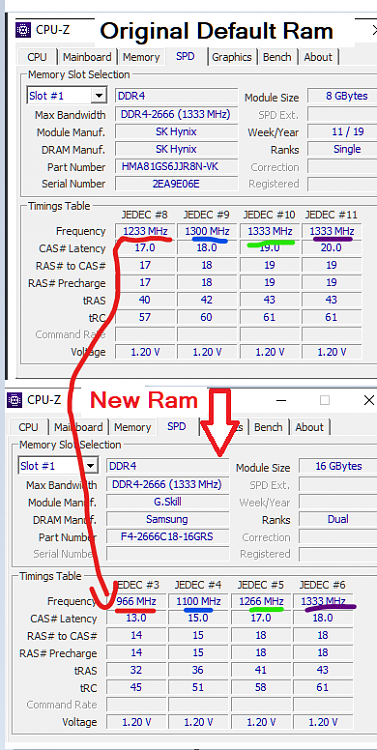
CPU-Z memory information display showing RAM details, timings, and SPD specifications

Complete Memory Information

CPU-Z displays detailed memory information including timings, frequencies, and SPD specifications for each memory module.

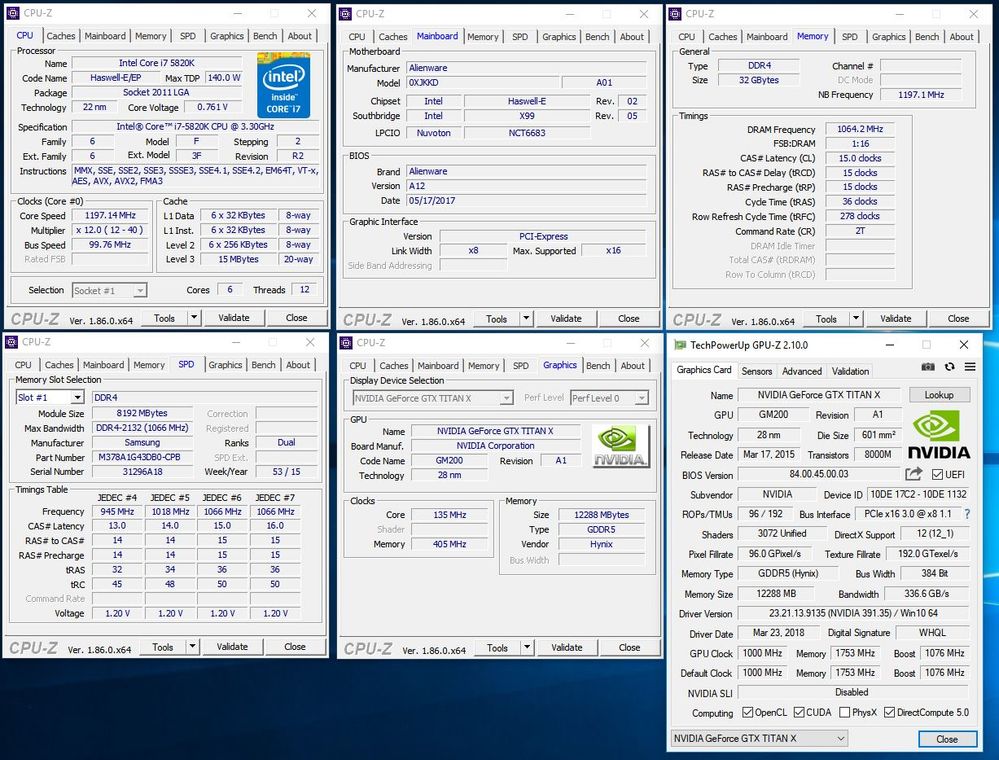
CPU-Z, GPU-Z, Core Temp, and SpeedFan system monitoring tools running together

System Monitoring Tools

CPU-Z can be used with other tools like GPU-Z and Core Temp for comprehensive system monitoring.

CPU-Z Frequently Asked Questions (FAQ)

Is CPU-Z free?

Yes, CPU-Z is completely free (Freeware) and does not require a license or payment.

Is CPU-Z safe?

Yes, CPU-Z is completely safe. Make sure to download it only from the official website (cpuid.com) to avoid fake copies.

What's the difference between Setup and ZIP versions?

The Setup version contains an installer that automatically selects the appropriate version and creates shortcuts. The ZIP version is portable and doesn't require installation.

Does CPU-Z work on Windows 11?

Yes, CPU-Z is fully compatible with Windows 11 and all modern Windows versions.

How can I verify CPU-Z information accuracy?

You can use the Validation feature in CPU-Z to create a validation file that can be shared with others to verify specifications.

Can CPU-Z be used on Android?

Yes, there is a version of CPU-Z available for Android devices from the Google Play Store.